دليل اللغة الإنجليزية للتحقق من عنوان IP ووضع IP ثابت على محطات Becke الداخلية ، بما في ذلك i51W و i52W و i53W و i56A ، مع طرق التكوين من جانب الجهاز والويب.
قبل تشغيل أو صيانة محطة داخلية، يحتاج المستخدمون غالبًا إلى تأكيد عنوان IP الحالي أو تغيير وضع الشبكة إلى IP ثابت. يشرح هذا الدليل الطرق العملية للتحقق من عنوان IP وتكوين عنوان IPv4 ثابت على محطات Becke الداخلية. الإجراءات أدناه مبنية على منطق الواجهة الموضح في محتوى HTML الأصلي وقد كُتبت بأسلوب دعم إنجليزي أكثر وضوحًا للقائمين بالتركيب والفنيين وفرق المشاريع.
النماذج المدعومة
ينطبق هذا الدليل على نماذج المحطات الداخلية التالية: i51W، i52W، i53W، و i56A.
الجمهور المستهدف
هذه الوثيقة مخصصة للمستخدمين والقائمين بالتركيب وموظفي الدعم الذين يحتاجون إلى معرفة عنوان IP للجهاز أو تحويل المحطة من DHCP إلى نشر IP ثابت.
كيفية التحقق من عنوان IP
التحقق من عنوان IP على i51W و i52W
الطريقة 1: التحقق من عنوان IP على شاشة الجهاز
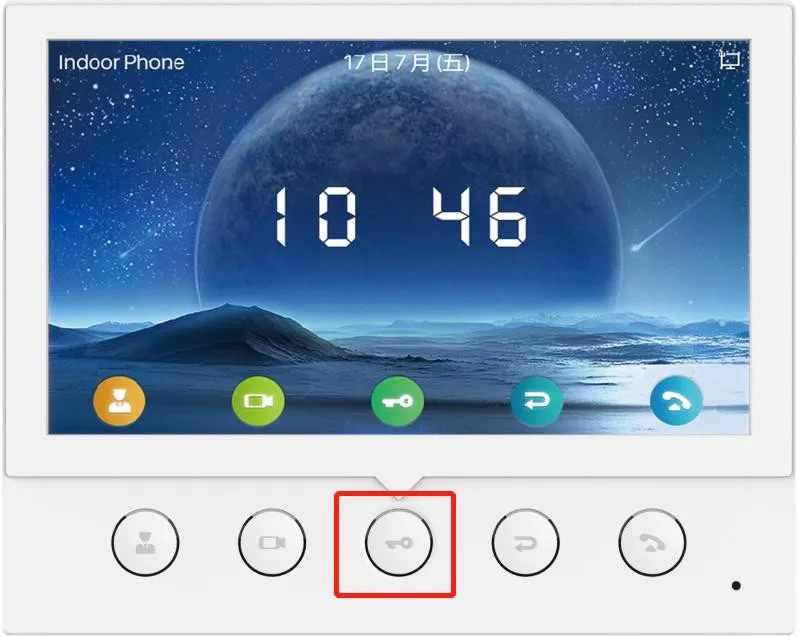
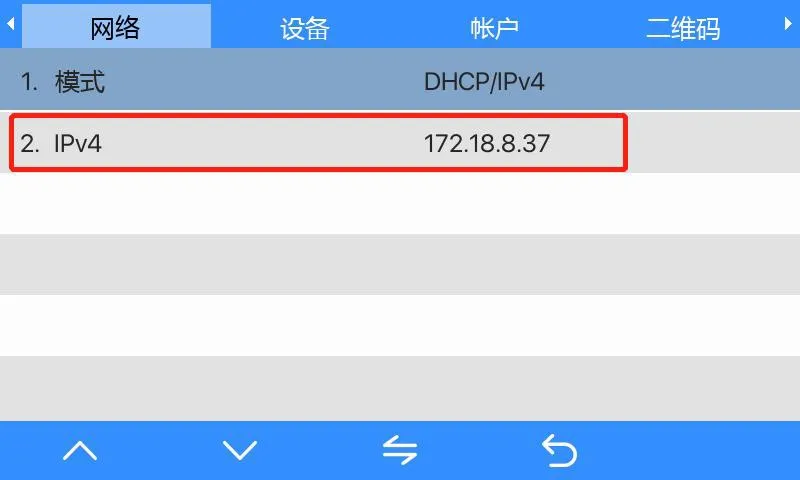
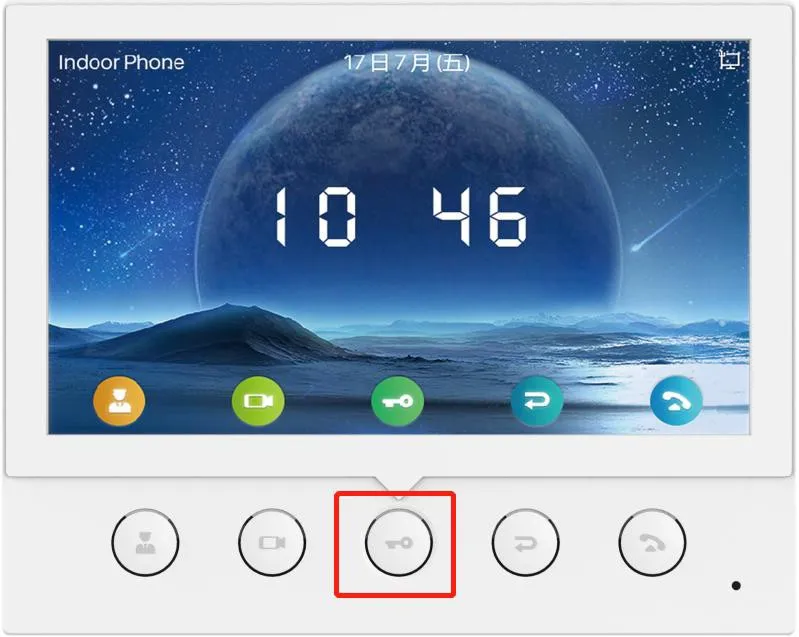
اضغط مع الاستمرار على المفتاح الموضح أدناه لمدة 3 ثوانٍ تقريبًا للدخول إلى قائمة الجهاز على i51W أو i52W. بعد الدخول إلى القائمة، انتقل إلى معلومات النظام ← الشبكة ← IPv4. سيتم عرض عنوان IP الحالي للجهاز على الشاشة.
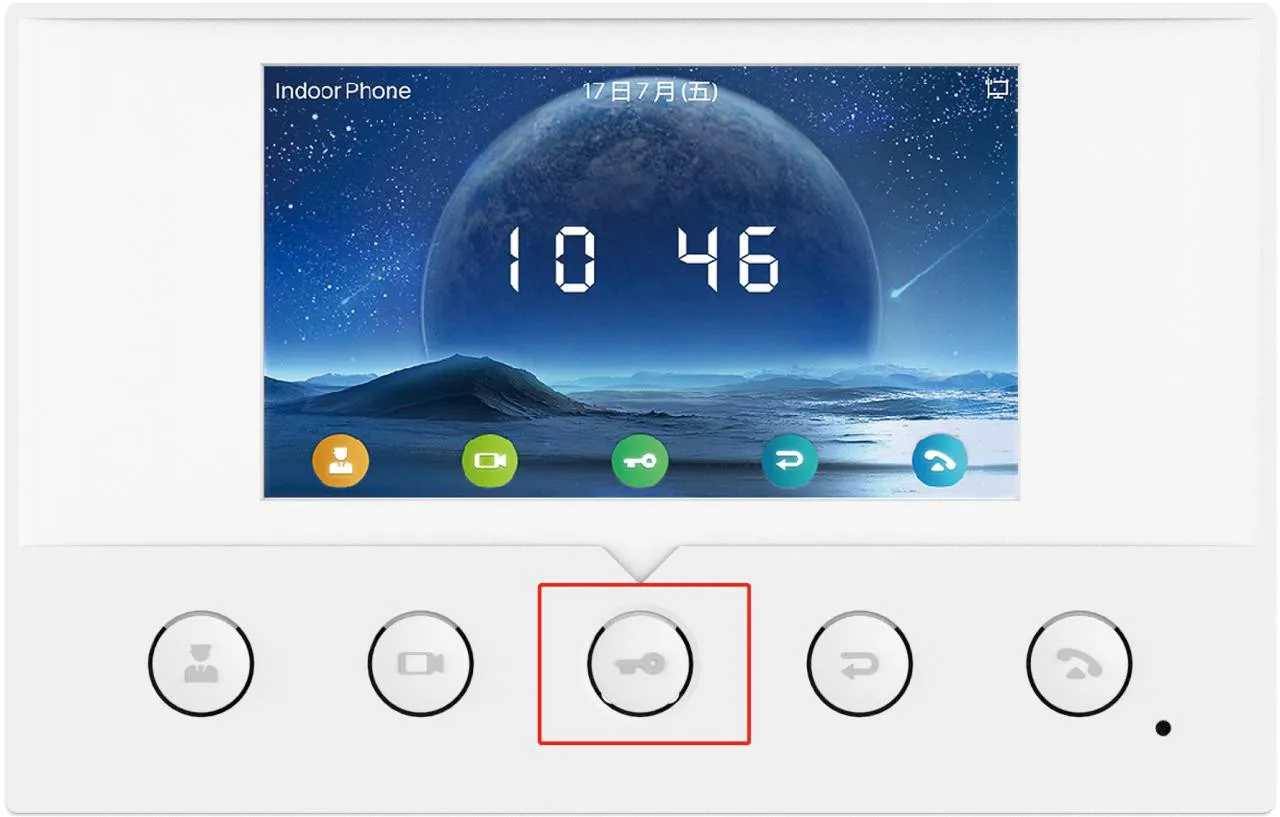
الشكل 1. رسم توضيحي لمفتاح i51W.الشكل 2. رسم توضيحي لمفتاح i52W.الشكل 3. شاشة معلومات IPv4 على i51W و i52W.
الطريقة 2: استخدام أداة فحص IP
قم بتوصيل الجهاز والكمبيوتر بنفس الشبكة المحلية.
قم بتنزيل وتثبيت أداة فحص IP من صفحة التنزيل الرسمية: https://www.fanvil.com.cn/Support/download/cid/30.html.
قم بتعيين عنوان IP للكمبيوتر بحيث يكون في نفس النطاق الفرعي للجهاز.
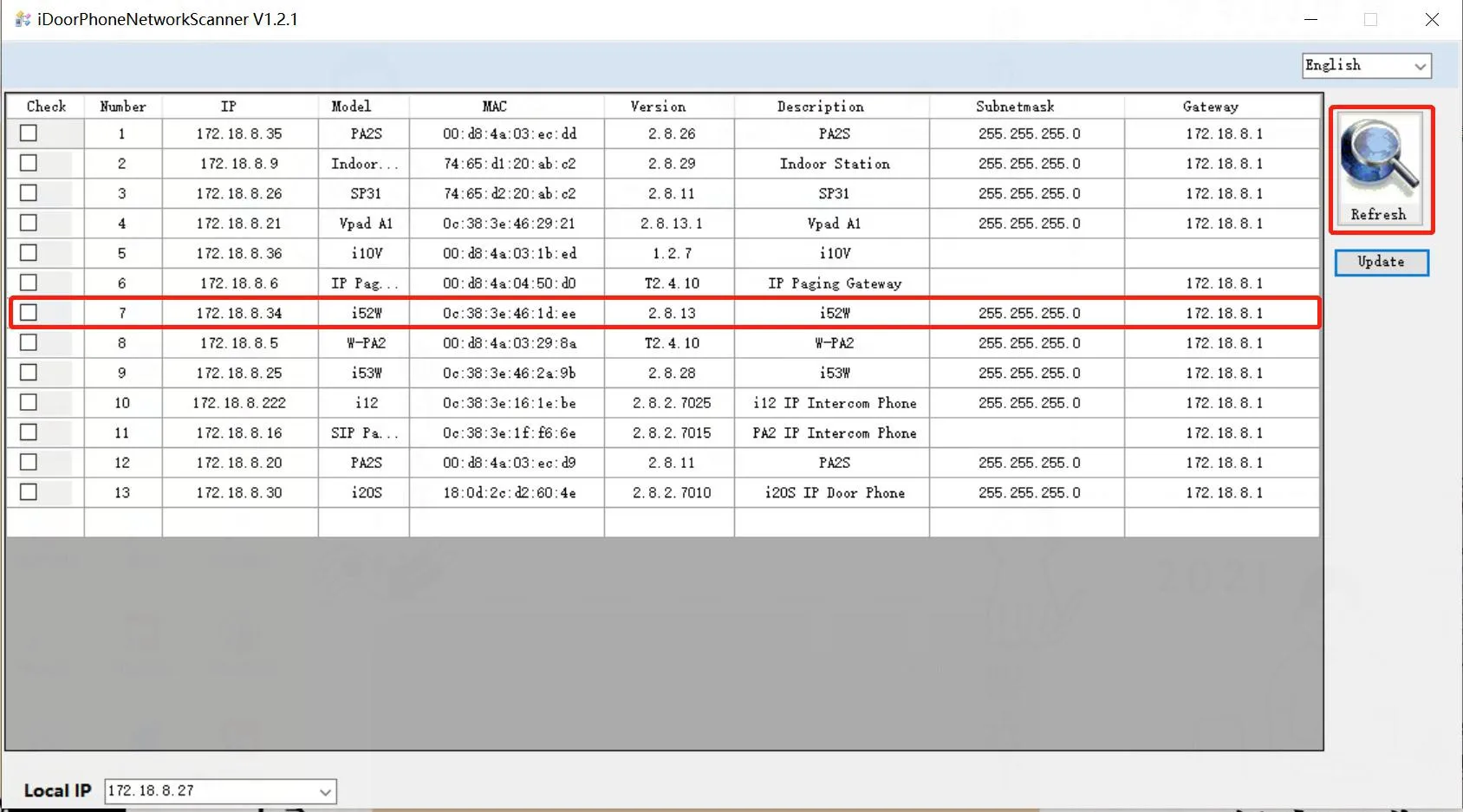
انقر على تحديث في أداة الفحص لاكتشاف الأجهزة المتوافقة على الشبكة المحلية وعرض النموذج وعنوان IP المكتشفين.
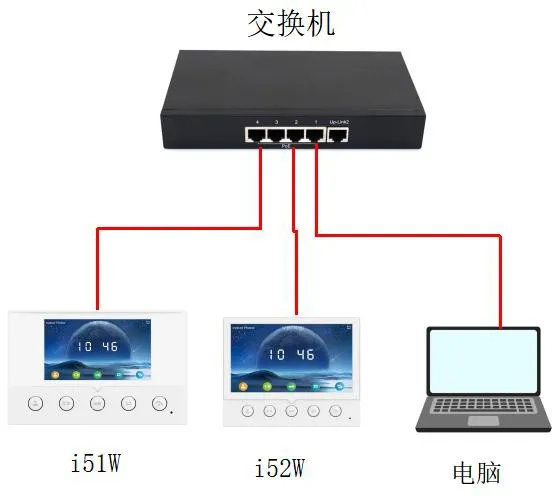
الشكل 4. رسم تخطيطي لاتصال الجهاز بالكمبيوتر لفحص IP.الشكل 5. مثال لقائمة الفحص تعرض الأجهزة المكتشفة وعناوين IP.
التحقق من عنوان IP على i53W
الطريقة 1: التحقق على شاشة الجهاز
اضغط على القائمة، ثم انتقل إلى الحالة ← الشبكة. سيتم عرض عنوان IP الحالي لجهاز i53W على الشاشة.
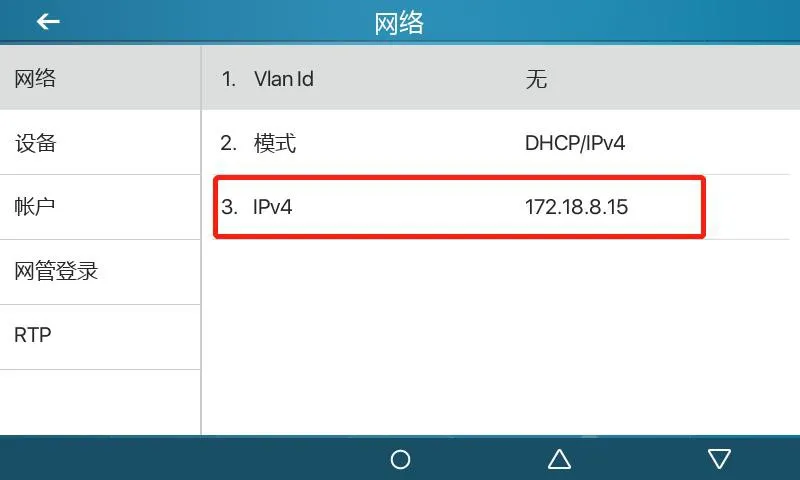
الشكل 6. عرض عنوان IP من شاشة i53W.
الطريقة 2: استخدام أداة فحص IP
قم بتوصيل i53W والكمبيوتر بنفس الشبكة.
قم بتنزيل وتثبيت أداة فحص IP من صفحة التنزيل الرسمية.
تأكد من أن الكمبيوتر في نفس النطاق الفرعي للجهاز.
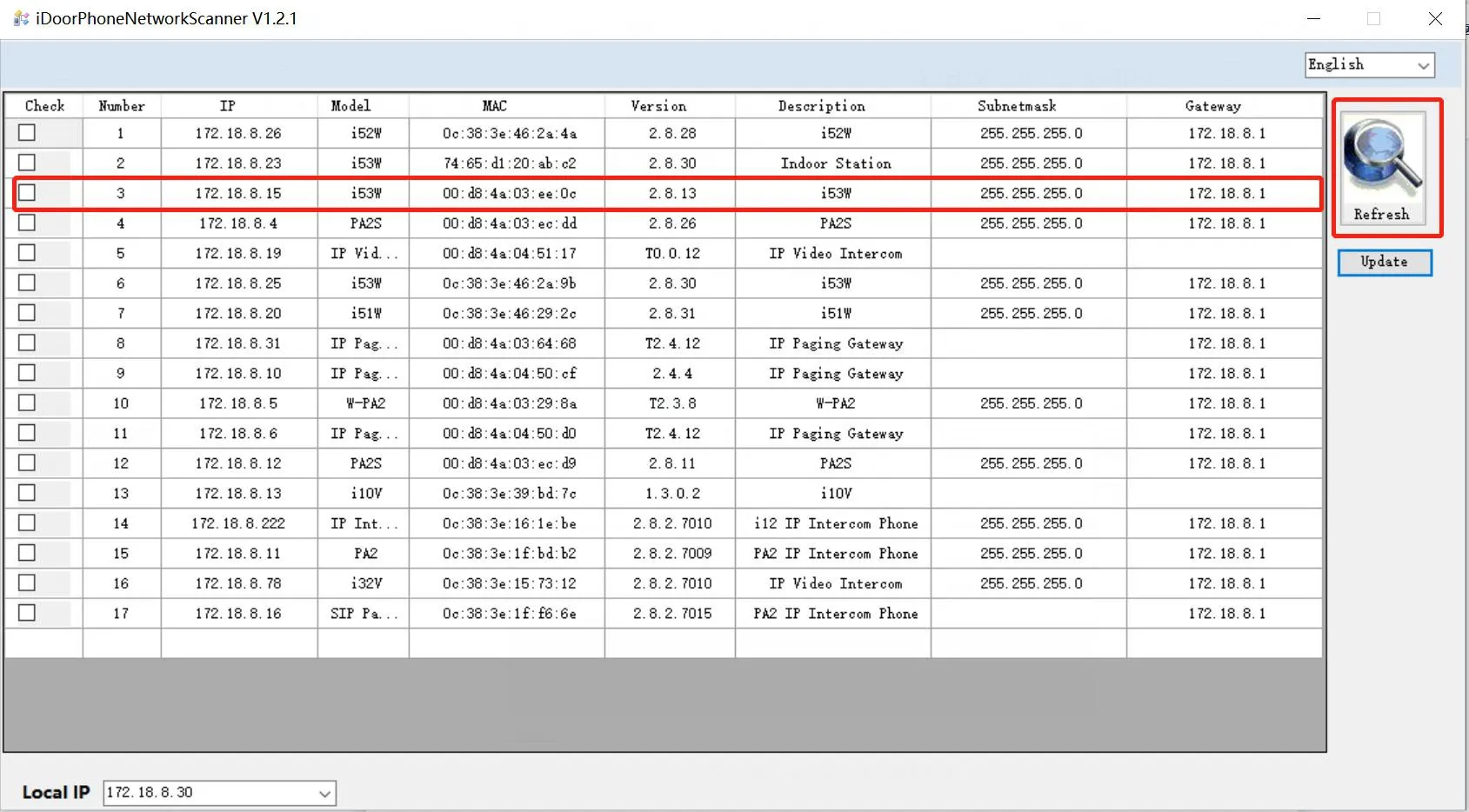
انقر على تحديث لفحص الشبكة المحلية وعرض عنوان IP للجهاز المكتشف.
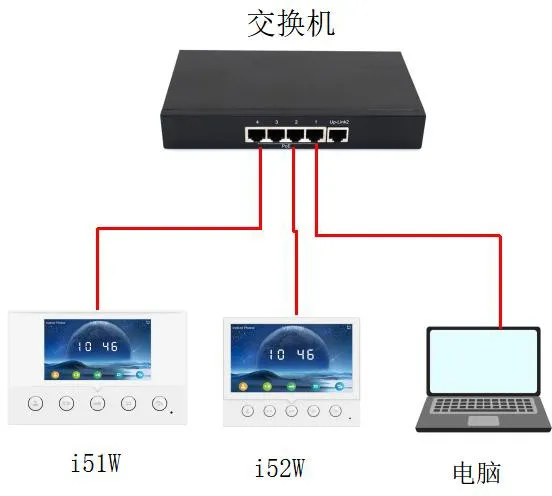
الشكل 7. رسم تخطيطي لاتصال i53W لفحص IP.الشكل 8. مثال لنتيجة فحص IP لـ i53W.
التحقق من عنوان IP على i56A
الطريقة 1: سحب اللوحة السريعة
على i56A، اسحب من أعلى الشاشة لأسفل لفتح منطقة الإعدادات السريعة. يمكن عرض عنوان IP الحالي مباشرة من هذه اللوحة.
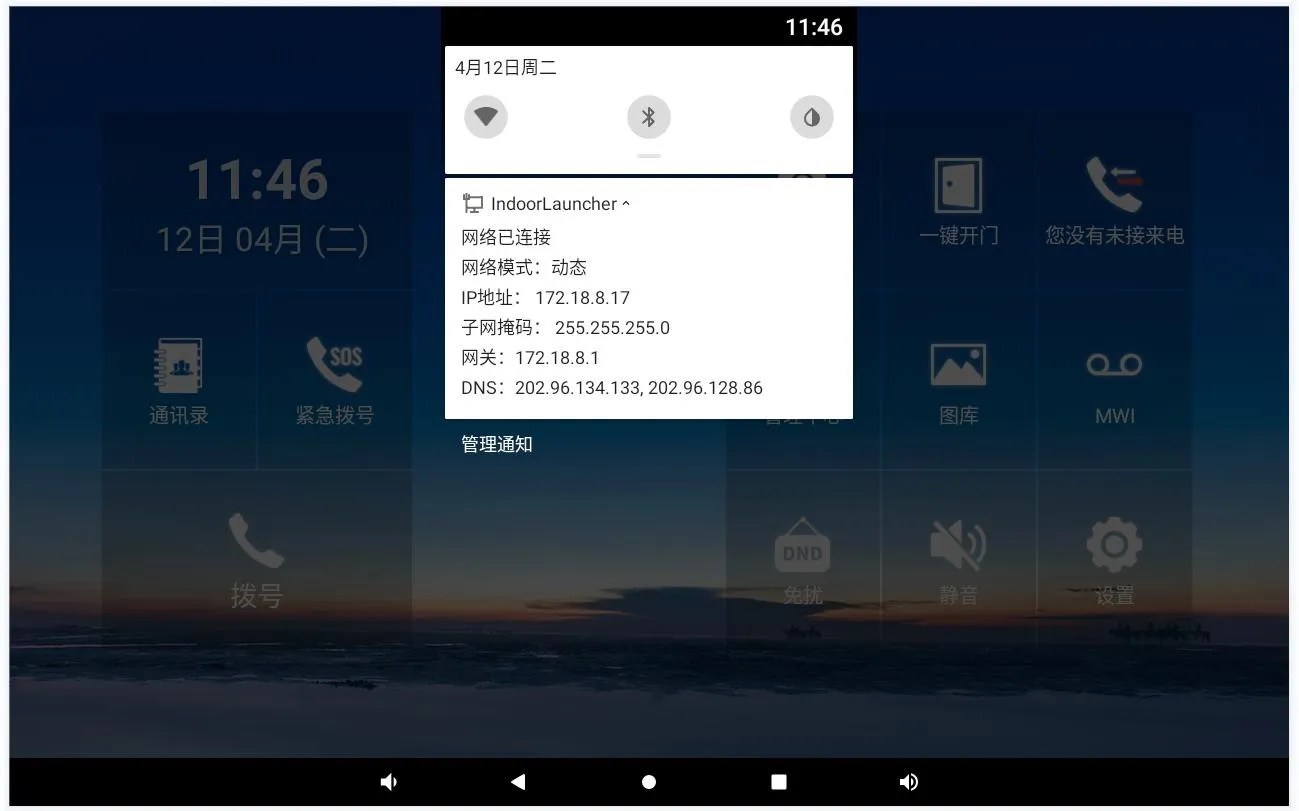
الشكل 9. عرض عنوان IP من اللوحة السريعة لـ i56A.
الطريقة 2: التحقق من صفحة حالة الجهاز
افتح الإعدادات ← عام على الشاشة وعرض معلومات الشبكة الحالية لتأكيد عنوان IP.
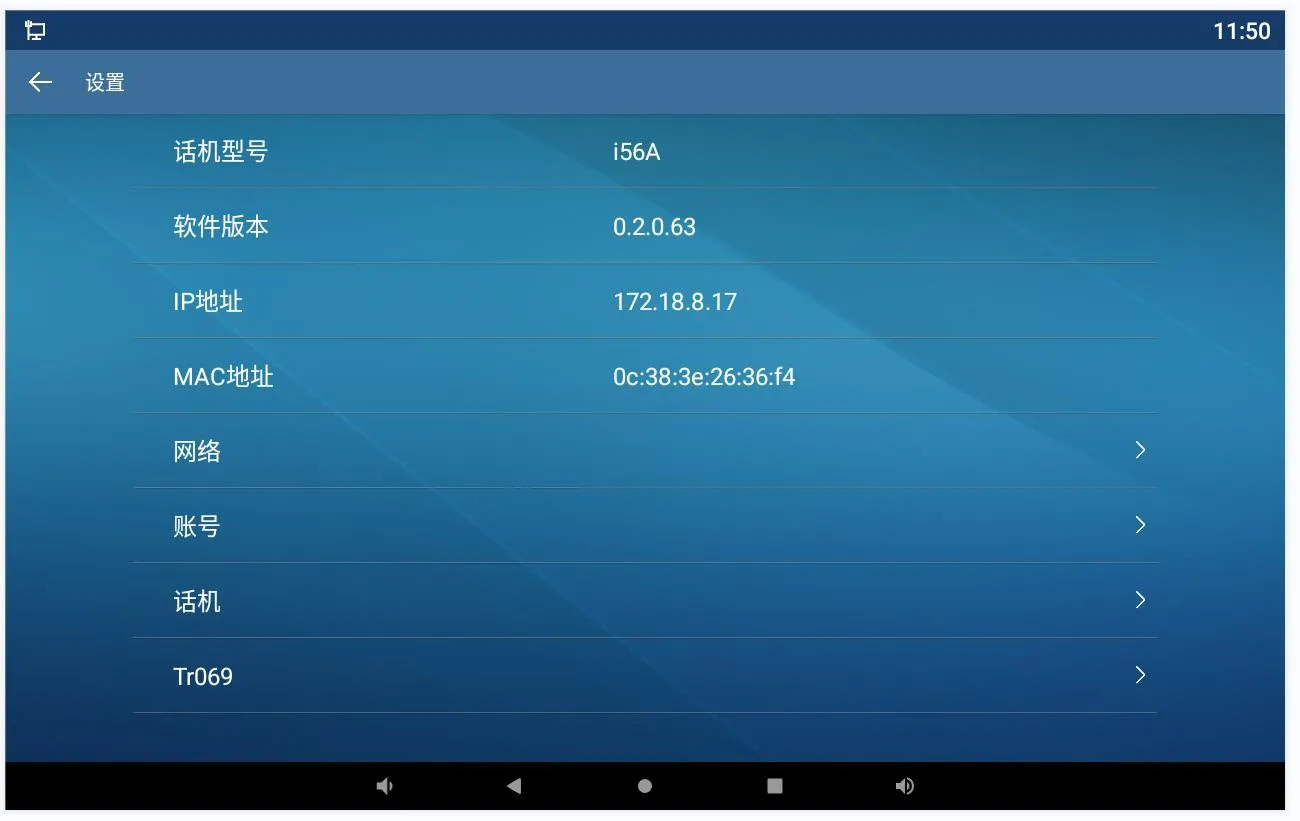
الشكل 10. عرض عنوان IP من صفحة حالة i56A.
كيفية تعيين عنوان IP ثابت
تعيين IP ثابت على i51W و i52W
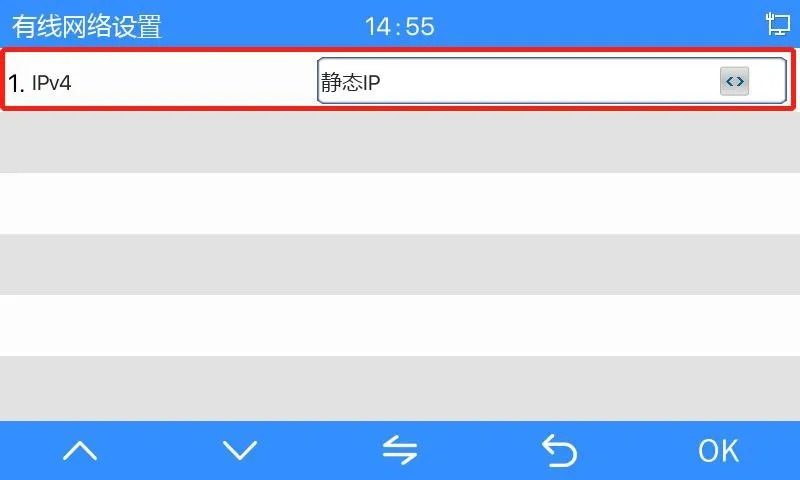
اضغط مع الاستمرار على المفتاح المناسب لمدة 3 ثوانٍ تقريبًا للدخول إلى شاشة القائمة على i51W أو i52W. ثم انتقل إلى إعدادات الشبكة ← إعدادات الشبكة السلكية ← IPv4 ← IP ثابت.
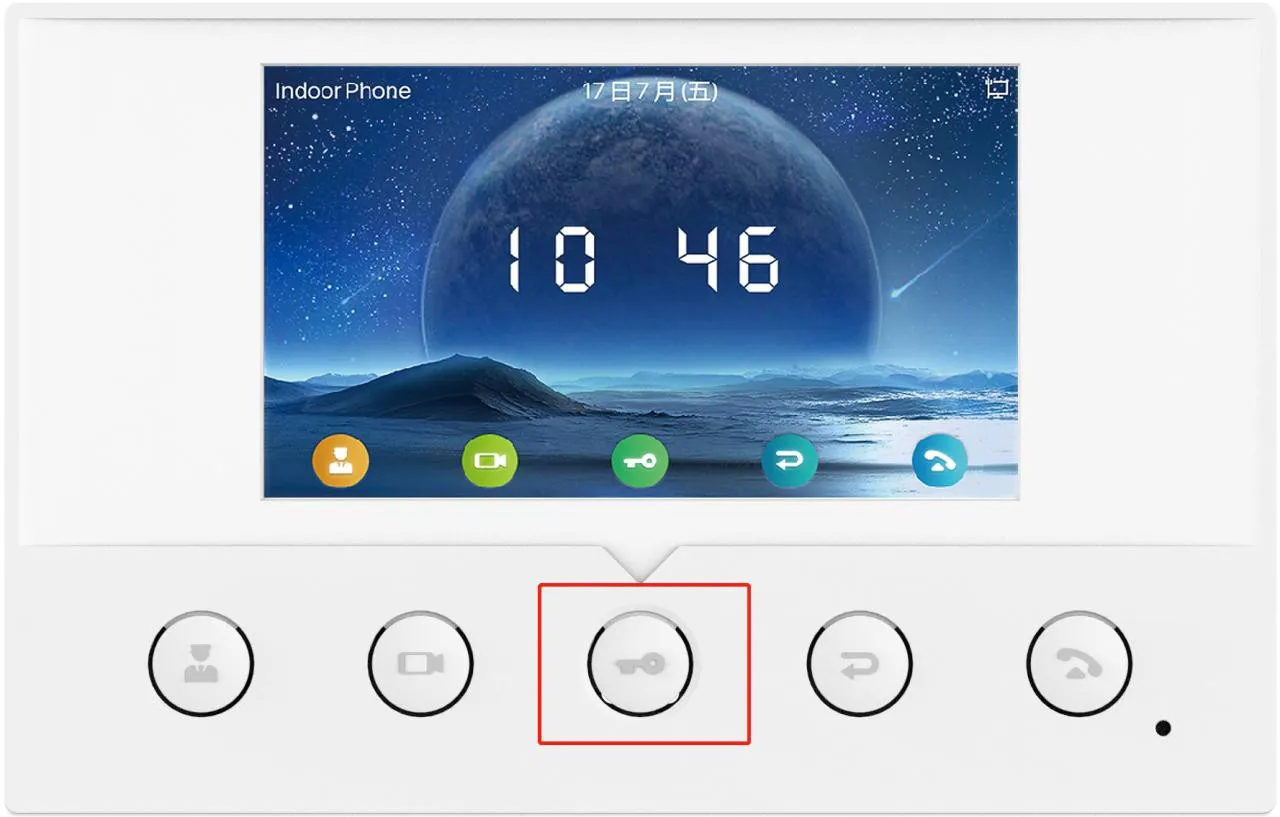
الشكل 11. الدخول إلى القائمة على i51W.الشكل 12. الدخول إلى القائمة على i52W.الشكل 13. تعيين وضع شبكة IP الثابت على i51W و i52W.
ملاحظة مهمة: على i51W و i52W، يمكن لقائمة الجهاز تبديل وضع الشبكة إلى IP ثابت، لكنها لا تسمح بالتحرير الكامل لعنوان IPv4 الثابت على الشاشة المحلية. بعد تغيير الوضع، يصبح عنوان IP الثابت الافتراضي 192.168.1.178. إذا كنت بحاجة إلى تعديل العنوان نفسه، فاستخدم واجهة الويب بدلاً من ذلك.
طريقة التهيئة عبر الويب
أدخل عنوان DHCP الحالي، أو عنوان IP الثابت الافتراضي بعد تبديل الأوضاع، في متصفح الويب.
سجل الدخول إلى واجهة الويب باستخدام بيانات اعتماد الحساب الافتراضية: admin / admin.
انتقل إلى الشبكة ← أساسي ← إعدادات IPv4.
قم بتحرير معلومات عنوان IP الثابت المطلوبة وحفظ التغييرات.
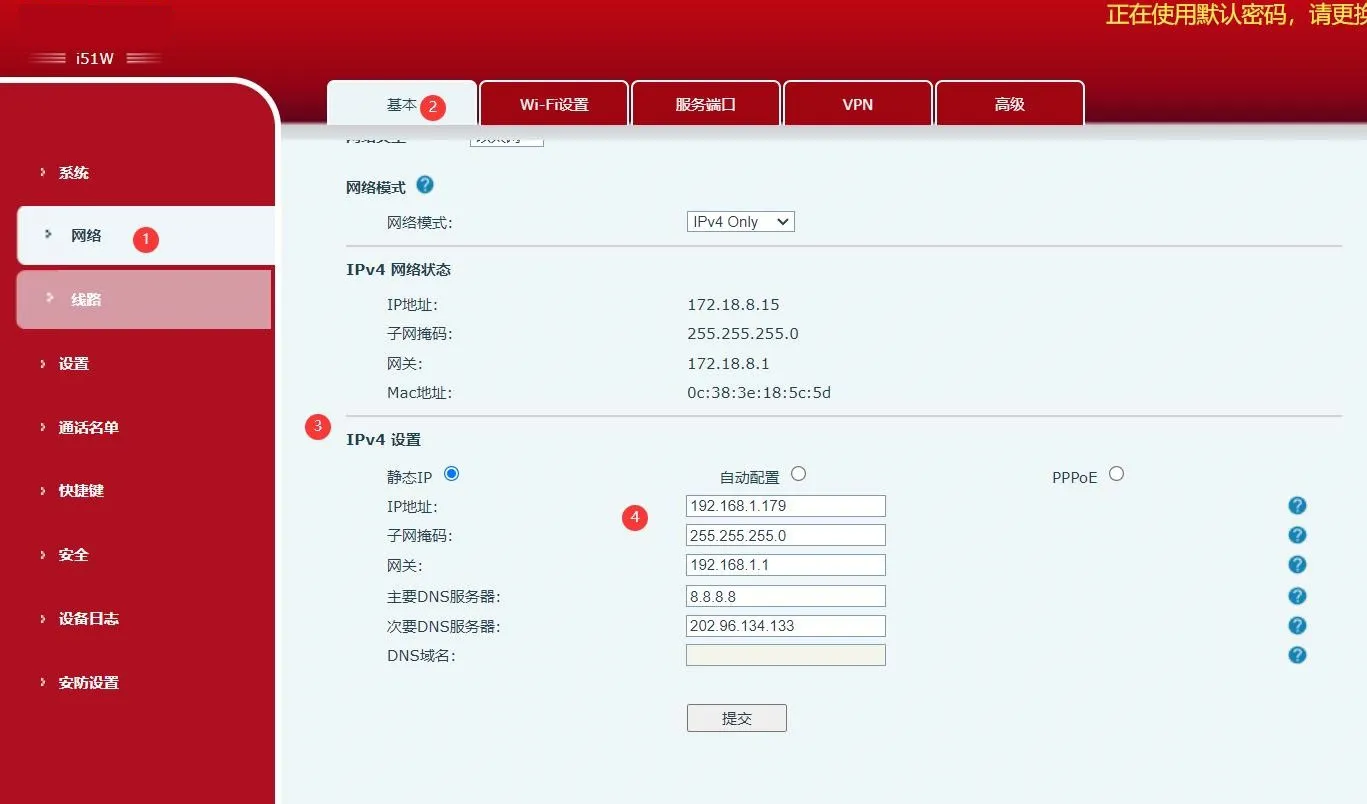
الشكل 14. تحرير عنوان IP الثابت من واجهة الويب.
تعيين IP ثابت على i53W
الطريقة 1: التهيئة من شاشة الجهاز
اضغط على القائمة ← الإعدادات المتقدمة وأدخل كلمة المرور الافتراضية 123.
انتقل إلى الشبكة ← إعدادات الشبكة ← IPv4.
قم بتغيير نوع الشبكة إلى IP ثابت.
قم بتحرير معاملات عنوان IP المطلوبة وحفظ التهيئة.
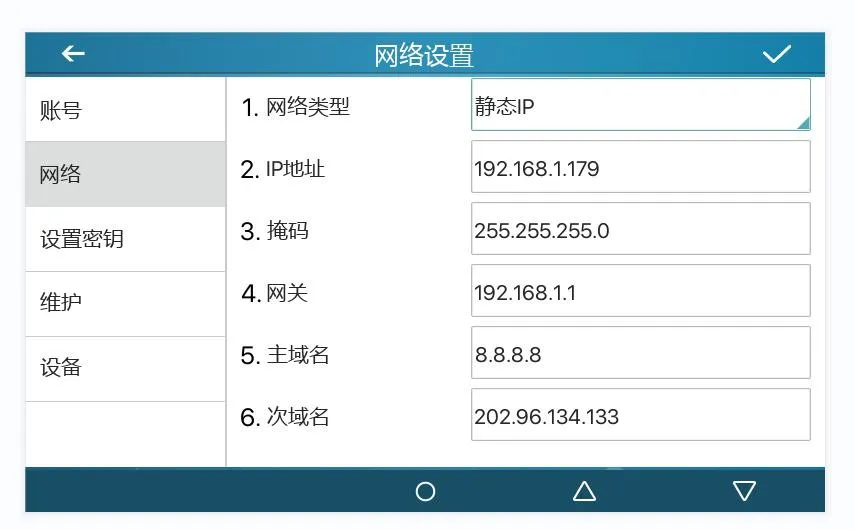
الشكل 15. تعيين عنوان IP ثابت على i53W من شاشة الجهاز.
الطريقة 2: التهيئة من صفحة الويب
أدخل عنوان IP للجهاز في متصفح وافتح واجهة الويب.
سجل الدخول باستخدام بيانات اعتماد الحساب الافتراضية: admin / admin.
انتقل إلى الشبكة ← أساسي ← إعدادات IPv4.
قم بتعديل وضع الشبكة ومعلومات عنوان IPv4 حسب الحاجة.
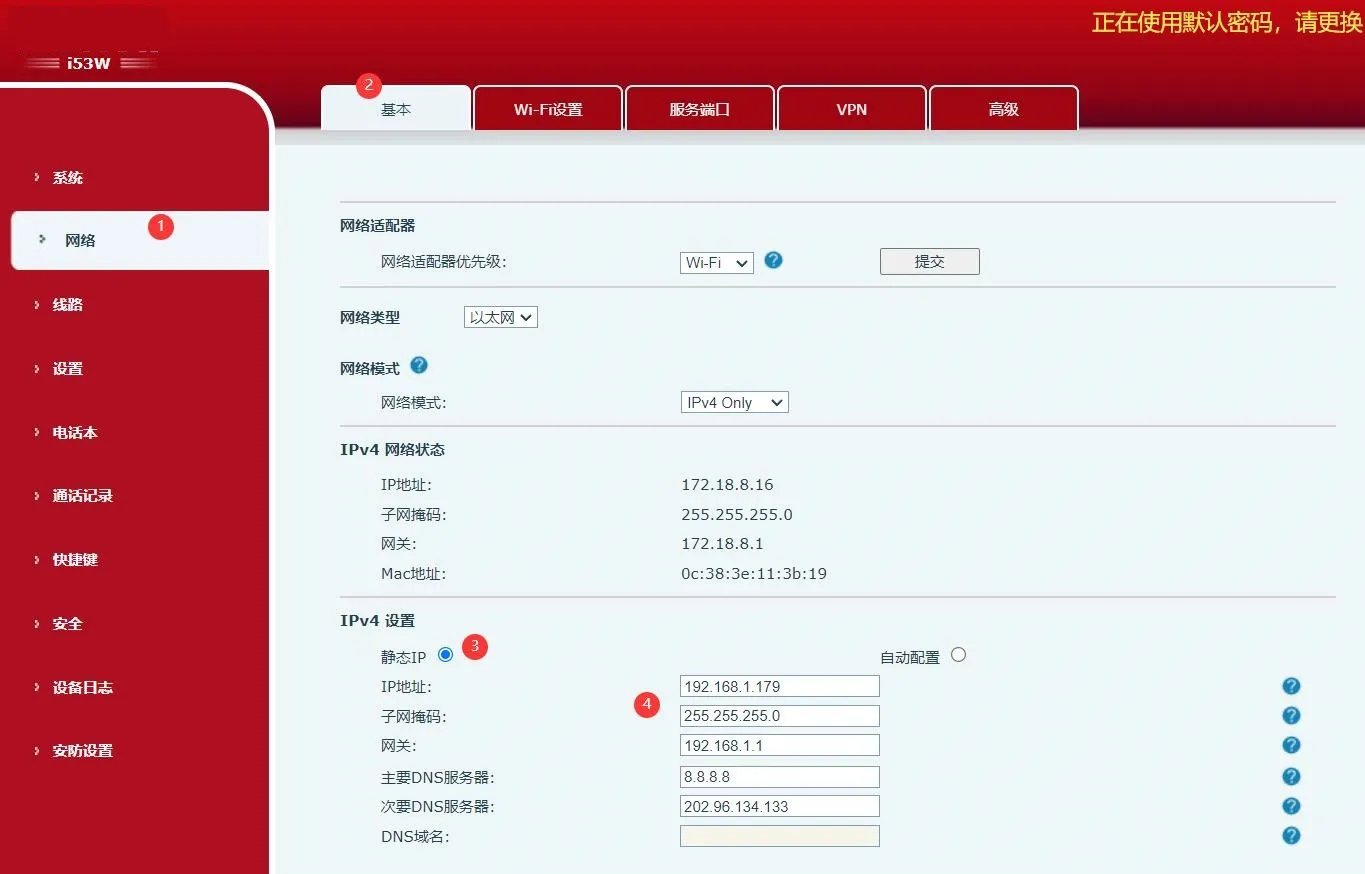
الشكل 16. تعيين عنوان IP ثابت على i53W من صفحة الويب.
تعيين IP ثابت على i56A
الطريقة 1: التهيئة من شاشة الجهاز
من وضع الاستعداد، افتح الإعدادات ← متقدم وأدخل كلمة المرور الافتراضية admin.
انتقل إلى الشبكة ← إيثرنت.
قم بتغيير وضع الشبكة إلى ثابت.
أدخل تفاصيل عنوان IP الثابت المطلوبة واحفظ الإعدادات.
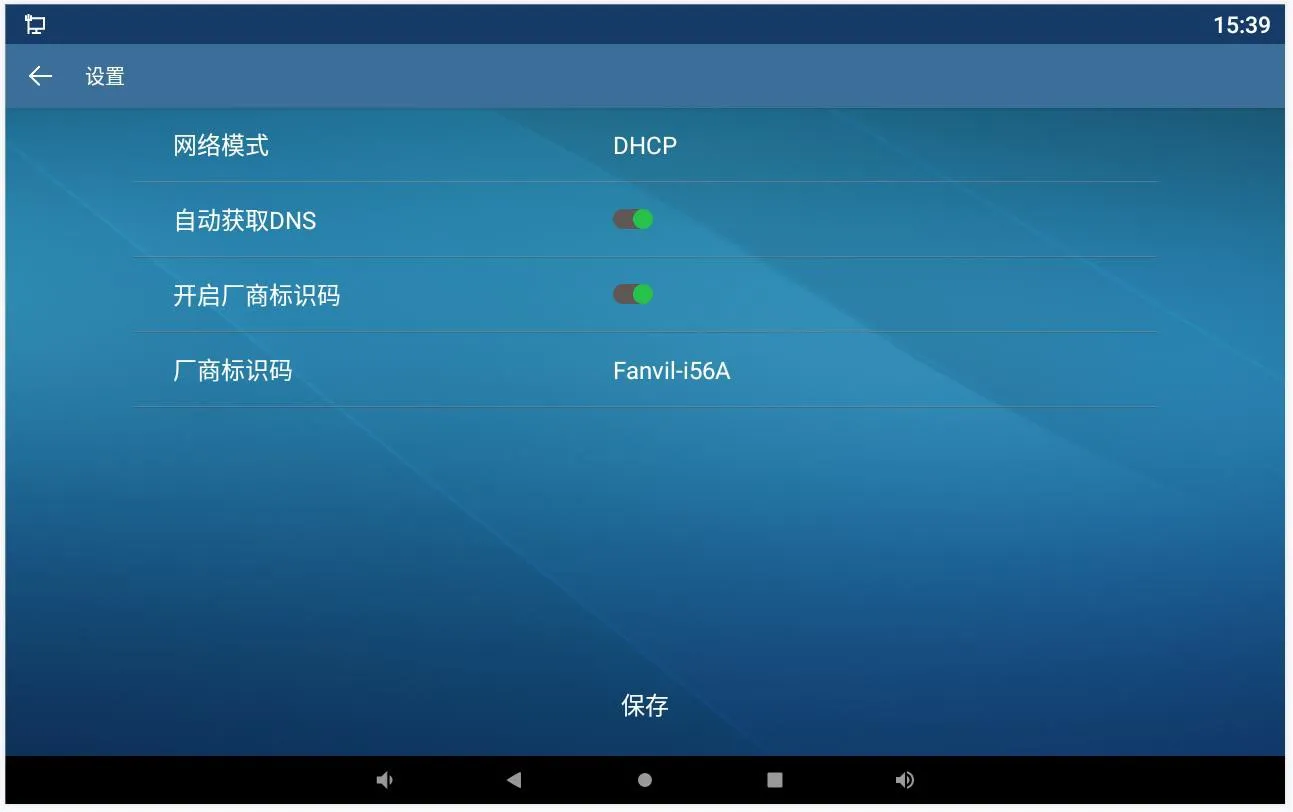
الشكل 17. تعيين عنوان IP ثابت على i56A من الشاشة المحلية.
الطريقة 2: التهيئة من واجهة الويب
أدخل عنوان IP الحالي في متصفح للوصول إلى واجهة الويب.
سجل الدخول باستخدام البيانات الاعتمادية المناسبة.
انتقل إلى الشبكة ← أساسي ← إعدادات IPv4.
قم بتحديث تهيئة IPv4 وحفظ التغييرات.
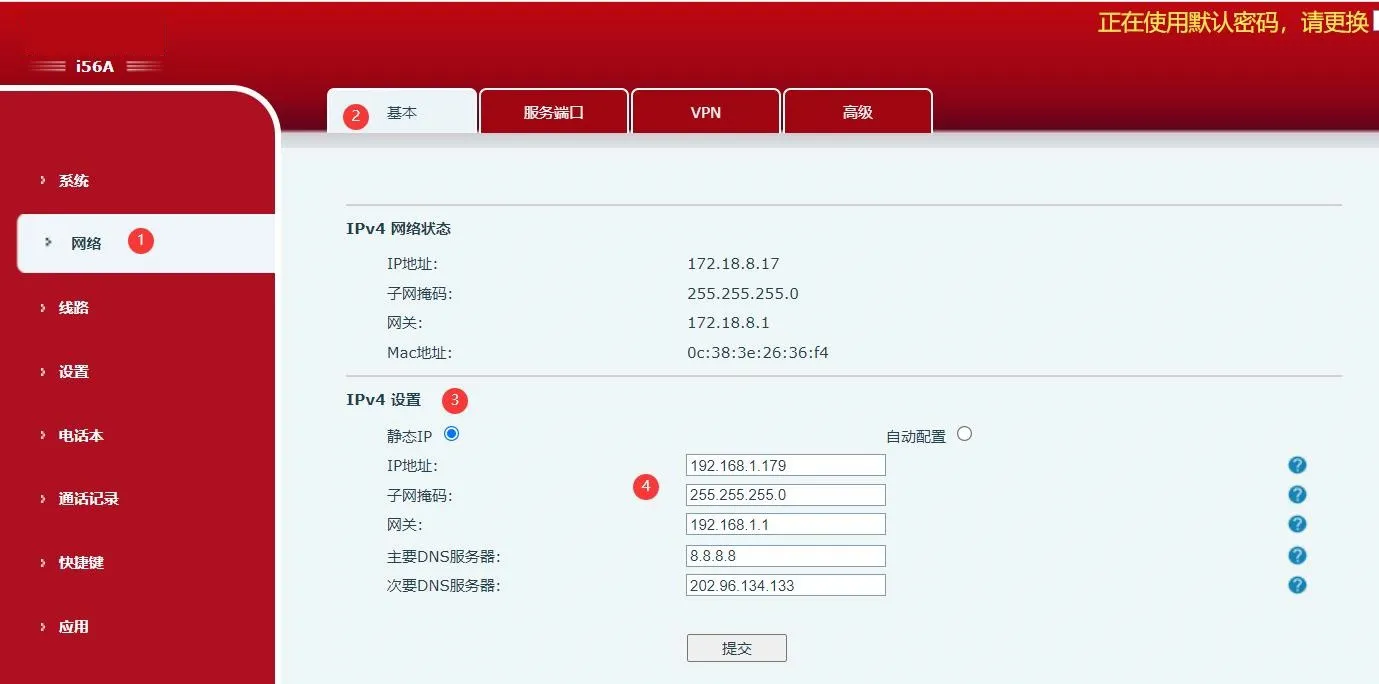
الشكل 18. تحرير عنوان IP على i56A من واجهة الويب.
ملاحظات النشر
عند التحقق من عنوان IP أو تغييره، تأكد من أن الجهاز والكمبيوتر في نفس مقطع الشبكة الذي يمكن الوصول إليه. إذا تم تحويل الجهاز من DHCP إلى IP ثابت، فقم بتأكيد العنوان الجديد قبل محاولة تسجيل الدخول عبر المتصفح. أثناء التشغيل، يُوصى أيضًا بتوثيق عنوان IP النهائي وقناع الشبكة الفرعية والبوابة ومعلومات VLAN لكل نقطة نهاية لتسهيل الصيانة لاحقًا.
بالنسبة للنشر على نطاق واسع، فإن استخدام خطة عناوين IP متسقة والتحقق من كل محطة بعد التهيئة يمكن أن يساعد في تقليل وقت استكشاف الأخطاء وإصلاحها وتحسين كفاءة التركيب.
الأسئلة الشائعة
هل يمكنني رؤية عنوان IP مباشرة على الجهاز؟
نعم. جميع النماذج المشمولة في هذا الدليل توفر طريقة محلية لعرض عنوان IP من الشاشة أو واجهة الإعدادات السريعة.
هل يمكنني تعيين عنوان IP ثابت مباشرة على i51W و i52W؟
يمكنك تبديل وضع الشبكة إلى IP ثابت على الجهاز نفسه، ولكن التحرير الكامل للعنوان الثابت يتم عبر واجهة الويب.
لماذا لا تستطيع أداة فحص IP العثور على جهازي؟
في معظم الحالات، يكون الكمبيوتر ليس في نفس النطاق الفرعي، أو أن الجهاز غير مزود بالطاقة بشكل صحيح، أو أن الاتصال الشبكي بين الكمبيوتر والطرف غير متاح.

كتالوج
المهنية الصانع الاتصالات الصناعية ، وتوفير ضمان الاتصالات موثوقية عالية!
We use cookie to improve your online experience. By continuing to browse this website, you agree to our use of cookie.
Cookies
This Cookie Policy explains how we use cookies and similar technologies when you access or use our website and related services. Please read this Policy together with our Terms and Conditions and Privacy Policy so that you understand how we collect, use, and protect information.
By continuing to access or use our Services, you acknowledge that cookies and similar technologies may be used as described in this Policy, subject to applicable law and your available choices.
Updates to This Cookie Policy
We may revise this Cookie Policy from time to time to reflect changes in legal requirements, technology, or our business practices. When we make updates, the revised version will be posted on this page and will become effective from the date of publication unless otherwise required by law.
Where required, we will provide additional notice or request your consent before applying material changes that affect your rights or choices.
What Are Cookies?
Cookies are small text files placed on your device when you visit a website or interact with certain online content. They help websites recognize your browser or device, remember your preferences, support essential functionality, and improve the overall user experience.
In this Cookie Policy, the term “cookies” also includes similar technologies such as pixels, tags, web beacons, and other tracking tools that perform comparable functions.
Why We Use Cookies
We use cookies to help our website function properly, remember user preferences, enhance website performance, understand how visitors interact with our pages, and support security, analytics, and marketing activities where permitted by law.
We use cookies to keep our website functional, secure, efficient, and more relevant to your browsing experience.
Categories of Cookies We Use
Strictly Necessary Cookies
These cookies are essential for the operation of the website and cannot be disabled in our systems where they are required to provide the service you request. They are typically set in response to actions such as setting privacy preferences, signing in, or submitting forms.
Without these cookies, certain parts of the website may not function correctly.
Functional Cookies
Functional cookies enable enhanced features and personalization, such as remembering your preferences, language settings, or previously selected options. These cookies may be set by us or by third-party providers whose services are integrated into our website.
If you disable these cookies, some services or features may not work as intended.
Performance and Analytics Cookies
These cookies help us understand how visitors use our website by collecting information such as traffic sources, page visits, navigation behavior, and general interaction patterns. In many cases, this information is aggregated and does not directly identify individual users.
We use this information to improve website performance, usability, and content relevance.
Targeting and Advertising Cookies
These cookies may be placed by our advertising or marketing partners to help deliver more relevant ads and measure the effectiveness of campaigns. They may use information about your browsing activity across different websites and services to build a profile of your interests.
These cookies generally do not store directly identifying personal information, but they may identify your browser or device.
First-Party and Third-Party Cookies
Some cookies are set directly by our website and are referred to as first-party cookies. Other cookies are set by third-party services, such as analytics providers, embedded content providers, or advertising partners, and are referred to as third-party cookies.
Third-party providers may use their own cookies in accordance with their own privacy and cookie policies.
Information Collected Through Cookies
Depending on the type of cookie used, the information collected may include browser type, device type, IP address, referring website, pages viewed, time spent on pages, clickstream behavior, and general usage patterns.
This information helps us maintain the website, improve performance, enhance security, and provide a better user experience.
Your Cookie Choices
You can control or disable cookies through your browser settings and, where available, through our cookie consent or preference management tools. Depending on your location, you may also have the right to accept or reject certain categories of cookies, especially those used for analytics, personalization, or advertising purposes.
Please note that blocking or deleting certain cookies may affect the availability, functionality, or performance of some parts of the website.
Restricting cookies may limit certain features and reduce the quality of your experience on the website.
Cookies in Mobile Applications
Where our mobile applications use cookie-like technologies, they are generally limited to those required for core functionality, security, and service delivery. Disabling these essential technologies may affect the normal operation of the application.
We do not use essential mobile application cookies to store unnecessary personal information.
How to Manage Cookies
Most web browsers allow you to manage cookies through browser settings. You can usually choose to block, delete, or receive alerts before cookies are stored. Because browser controls vary, please refer to your browser provider’s support documentation for details on how to manage cookie settings.
Contact Us
If you have any questions about this Cookie Policy or our use of cookies and similar technologies, please contact us at support@becke.cc .